Guide / For employees
Guide for employees
Join your team, install the app and get your daily work done — no training needed.
Join your team
- Open the invite link your company sent (WhatsApp, email or SMS).
- Check your name and organisation, create a password, tap Join.
- Next time, log in at erp.taskvox.in/login with your email and password.
Install TaskVox on your phone
Android (Chrome)
- Open TaskVox in Chrome.
- Tap the ⋮ menu → Install app or Add to Home screen.
- Open TaskVox from the new icon — it works like a normal app.
iPhone (Safari)
- Open TaskVox in Safari.
- Tap the Share button → Add to Home Screen.
- Always open TaskVox from this icon (needed for notifications on iPhone).
Turn on notifications
On your Home screen tap Turn on notifications (or Settings → Notifications on this device) and choose Allow. You will be notified about new tasks, deadlines, messages and announcements even when the app is closed.
iPhone: notifications work on iOS 16.4 or newer and only when TaskVox is opened from the Home Screen icon.
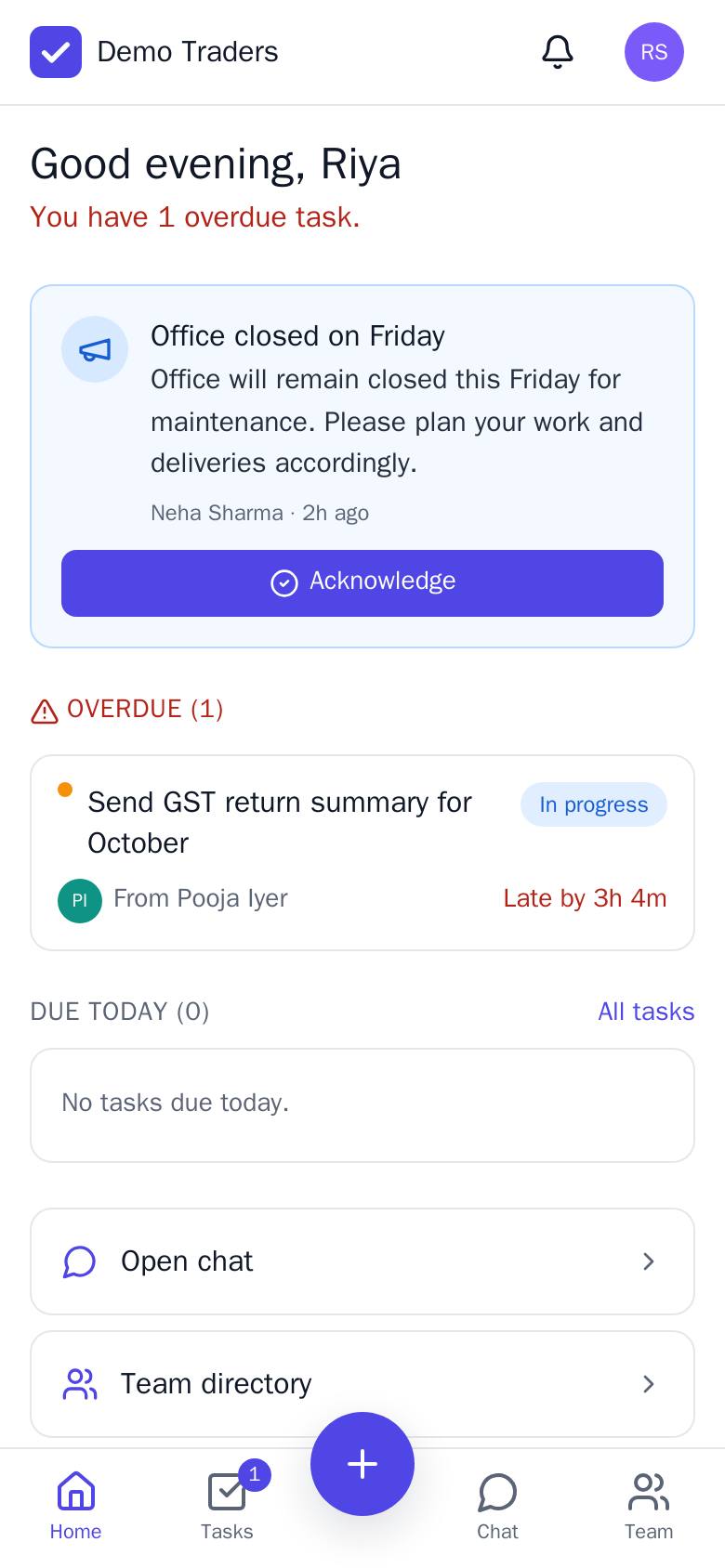
Your Home screen
- Pinned announcements — tap Acknowledge after reading.
- Overdue / Due today / Upcoming — your tasks with a live countdown ("Due in 2h", "Late by 1h").
- Today's update — in the afternoon, write a line about what you did.
Do a task: Start → Submit
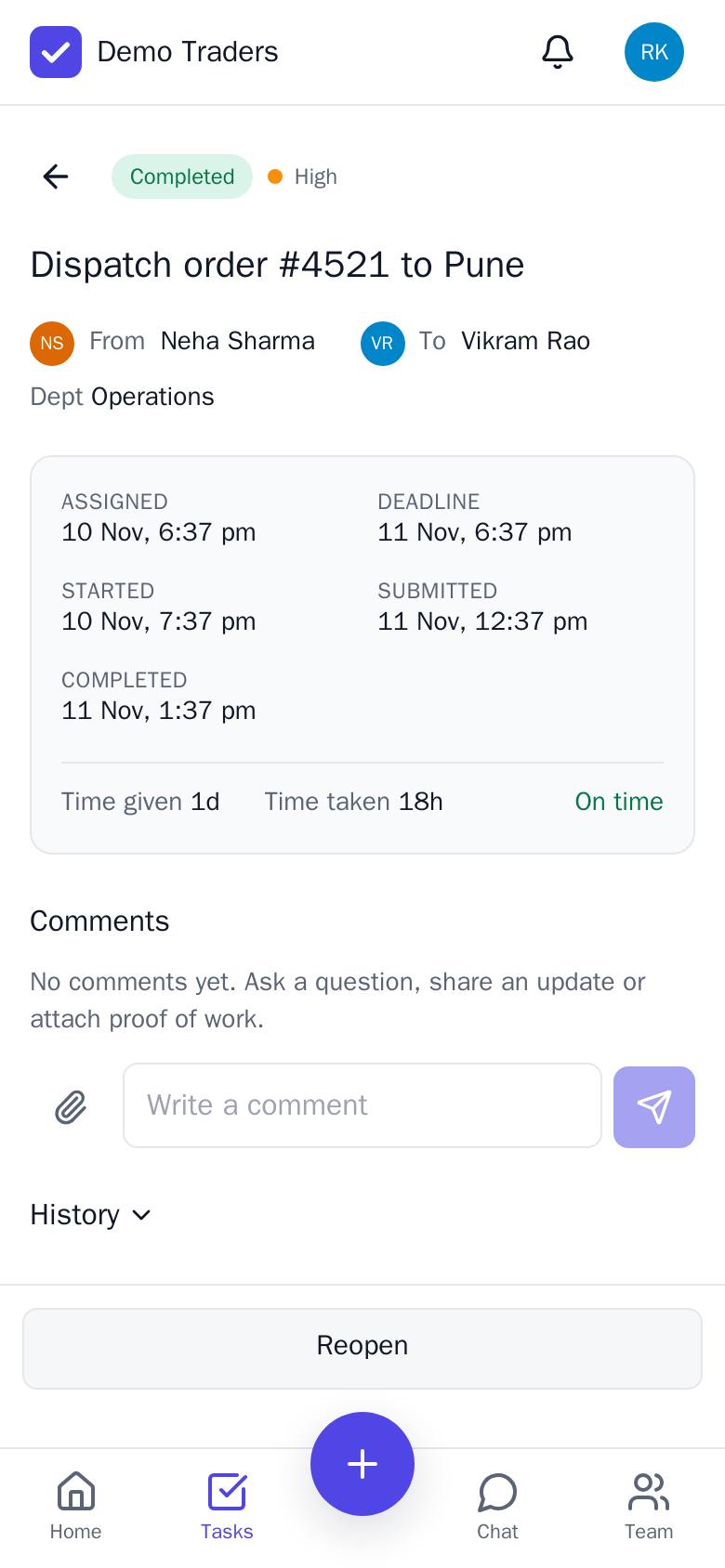
- Open the task from Home or Tasks.
- Tap Start when you begin — the start time is recorded.
- Ask questions or share proof in Comments. Tap the 📎 clip to attach photos, PDFs or Excel files.
- When finished tap Submit for review (add a note if useful). The submit time decides On time or Late.
- Your manager approves it, or reopens it with a reason — then fix and submit again.
Chat with your team
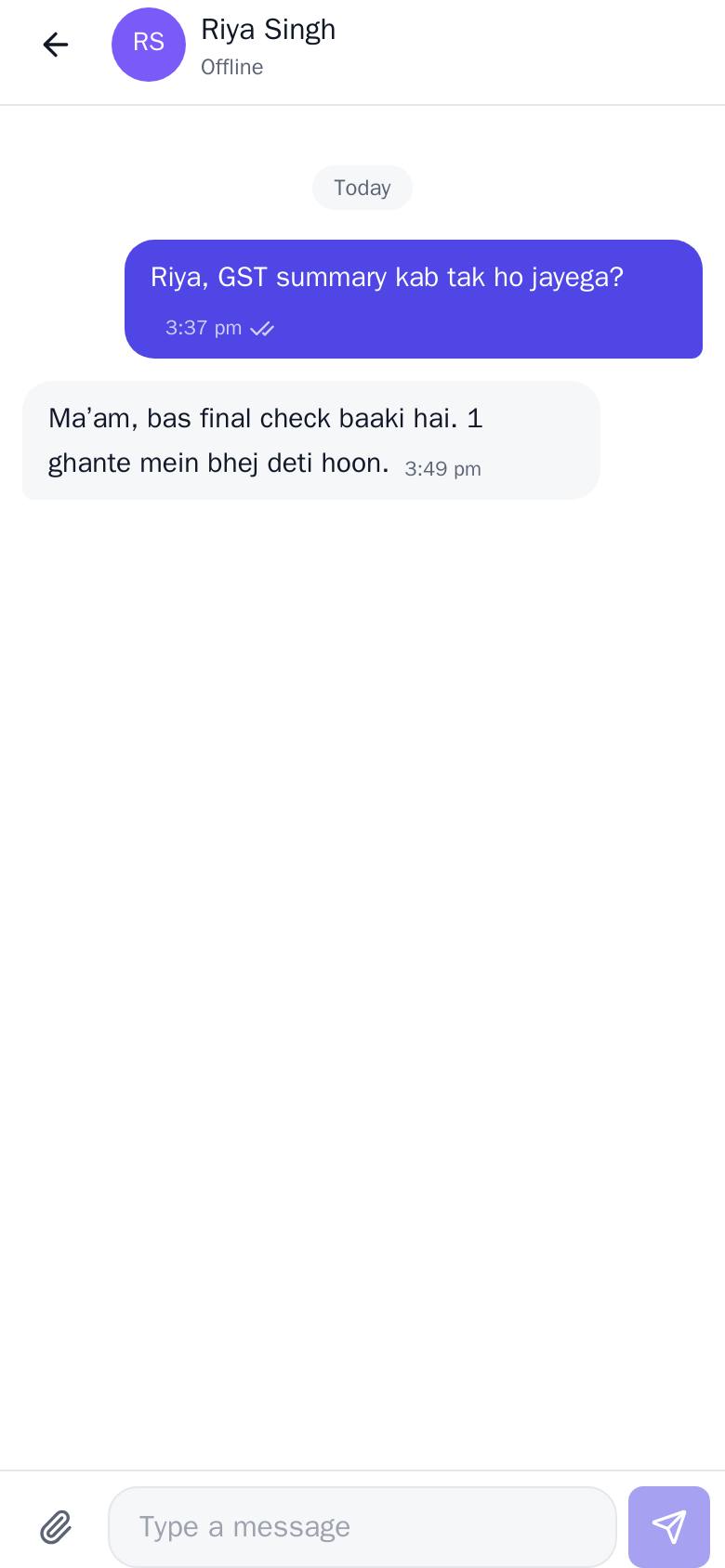
- Chat shows your department channel, private chats and groups. Unread chats have a number.
- Start a chat: + → New message → pick a person, or switch to Group to create a group.
- ✓ means sent, ✓✓ means seen. Tap the clip 📎 to send photos and files.
- No network? Type anyway — messages are sent automatically when you're back online.
Post your daily update
From about 3 PM, Home shows What did you work on today?. Write a short summary and any blocker, then tap Post update. You can edit it the same day. Your manager sees it in Team → Daily updates.
Your account
Settings: change your name, mobile, password, light/dark theme and notifications. Log out on shared phones — it also stops notifications on that phone.